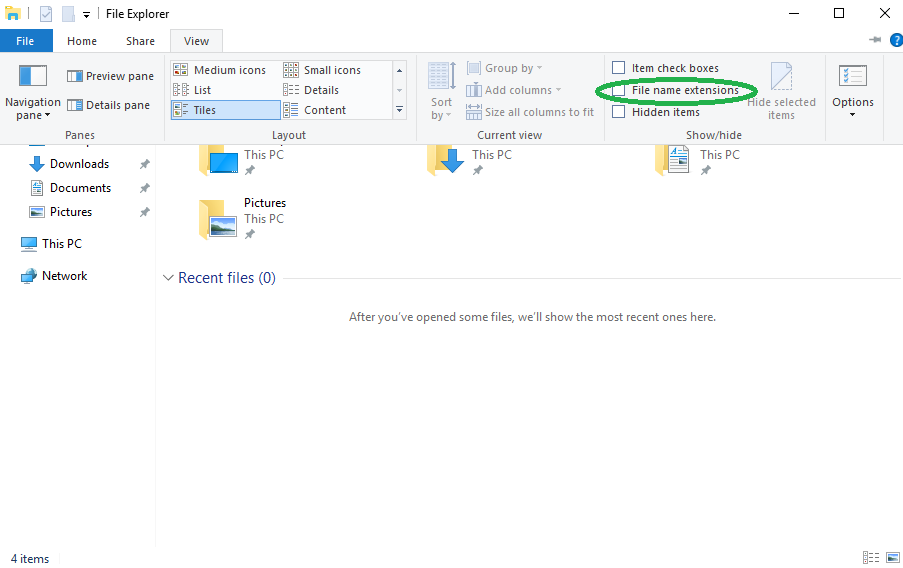
Showing File Name Extensions on Windows 10/11
By default, Microsoft Windows 10 and 11 do not show file extensions for known file types. This can result in problems when you need to rename files.
Instructions for Windows 10
- Open a new File Explorer window.
- Switch to the View tab/ribbon.
- On this tab, if the
File name extensionscheckbox is not ticked, put a check/tick mark in it by clicking it.
Instructions for Windows 11
- Open a new File Explorer window.
- Click the
Viewhamburger menu/dropdown menu. - Go to
Showat the bottom and ensure thatFile name extensionsis ticked.
TIP